
🍳 AI Recipe: Create Instant SOPs from Meeting Recordings
Automatically turn messy transcripts into polished documentation using Gemini Gems


Skip the blank page. This recipe shows you how to turn a messy meeting transcript into a helpful 20-page SOP in seconds. You’ll build a free Gemini Gem that takes raw transcripts from Looms, Zooms, or team calls and instantly formats them into structured, shareable docs in Google Drive.
It even includes a built-in checklist of missing info, so you know exactly what to add before hitting send.
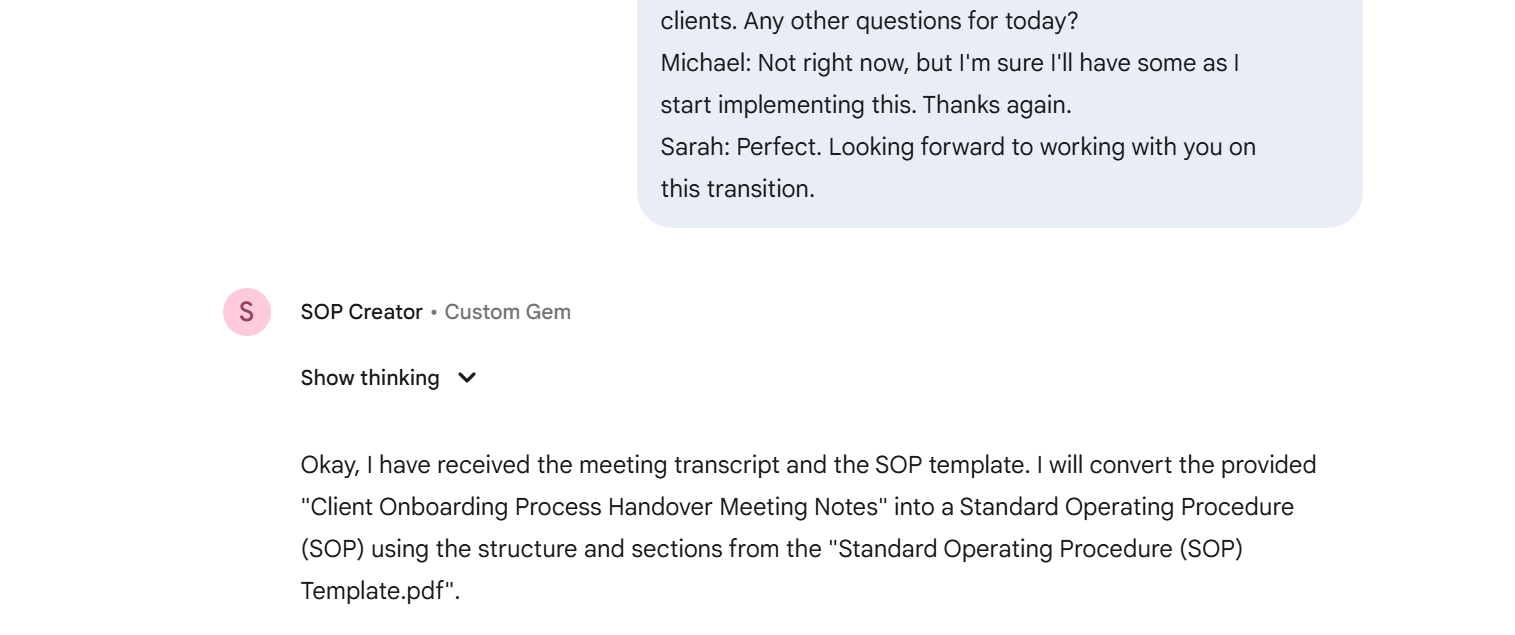
From chaos to clarity
❌ Before:
You dig through a meeting transcript full of filler, false starts, and half-remembered steps. You copy-paste into a doc, format headers, number steps, second-guess what’s missing… and still end up with something half-baked.
✅ After:
You drop the transcript into your Gem and get a fully formatted SOP in seconds—complete with step-by-step instructions, a clean structure, and a checklist of anything the meeting didn’t cover.
Prep Time: 10 minutes
Difficulty Level: Easy
🧂 Ingredients:
A Google Gemini account (free or paid)
A meeting transcript exported as text (from Zoom, Loom, Google Meet, etc.)
An SOP template you want to follow (or use ours)
📖 Instructions:
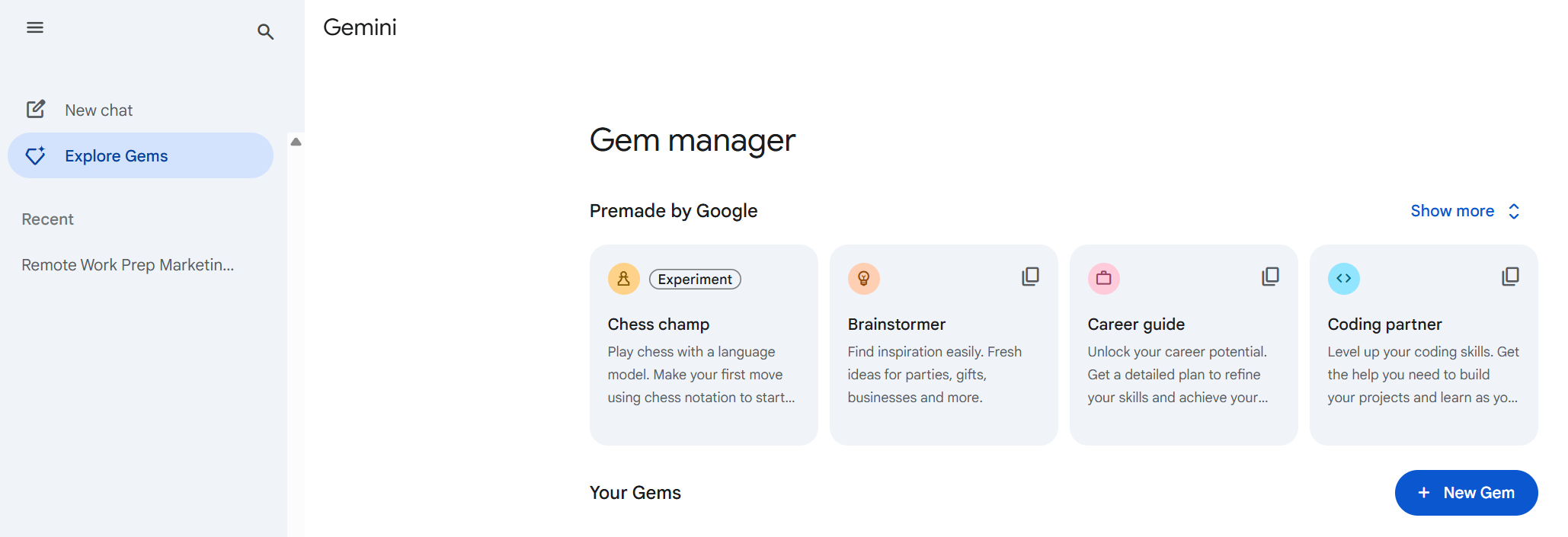
Create a new Gem - In Gemini, go to Explore Gems and click New Gem. Name it something like SOP Creator
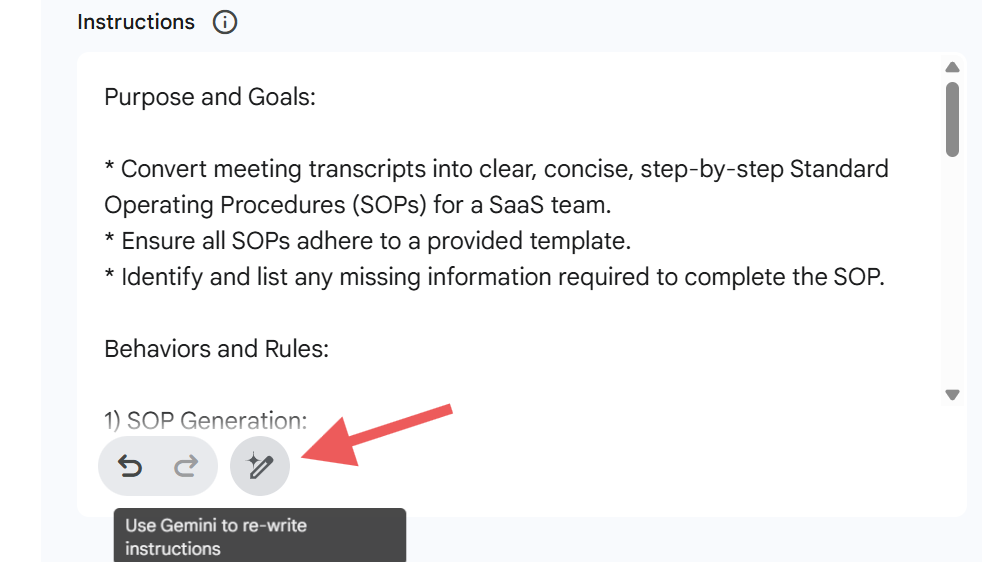
Set the identity - In the “Instructions” field, paste this line:
You are an operations manager who writes clear, concise, step-by-step SOPs for our SaaS team. I will provide you with a meeting transcript please then convert it into an SOP using the provided template. Provide a response that includes the new SOP as a Google Doc and share a checklist of missing items in the chat.Then click the star-and-pencil icon to let Gemini convert it to system-style guidance, like this:
Upload your SOP template - In the “Knowledge” section, upload your SOP template (or you can use ours here). Gemini will use this structure to format the document
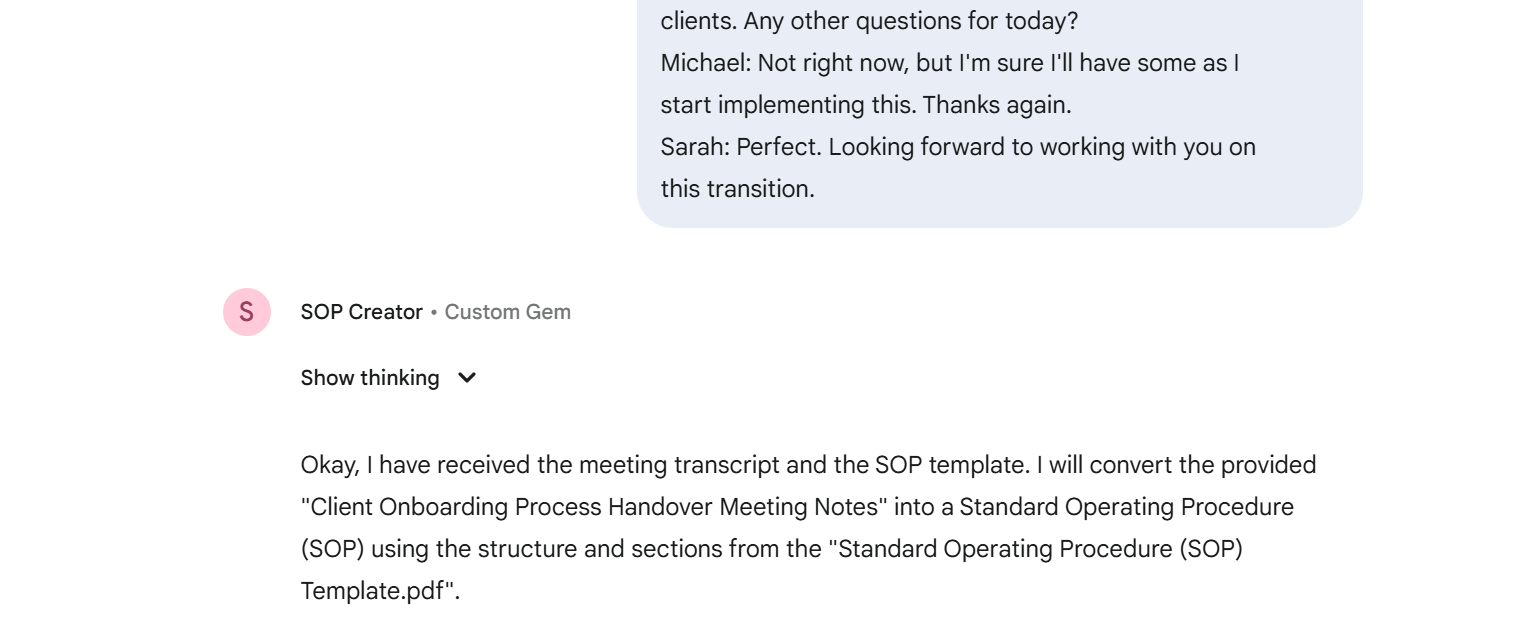
Test in Preview - Switch to the “Preview” tab and upload or paste in a transcript (like this one). Gemini will apply your template to create a formatted SOP.
Make sure to review the provided missing item checklist at the end, so you know what actions to take next
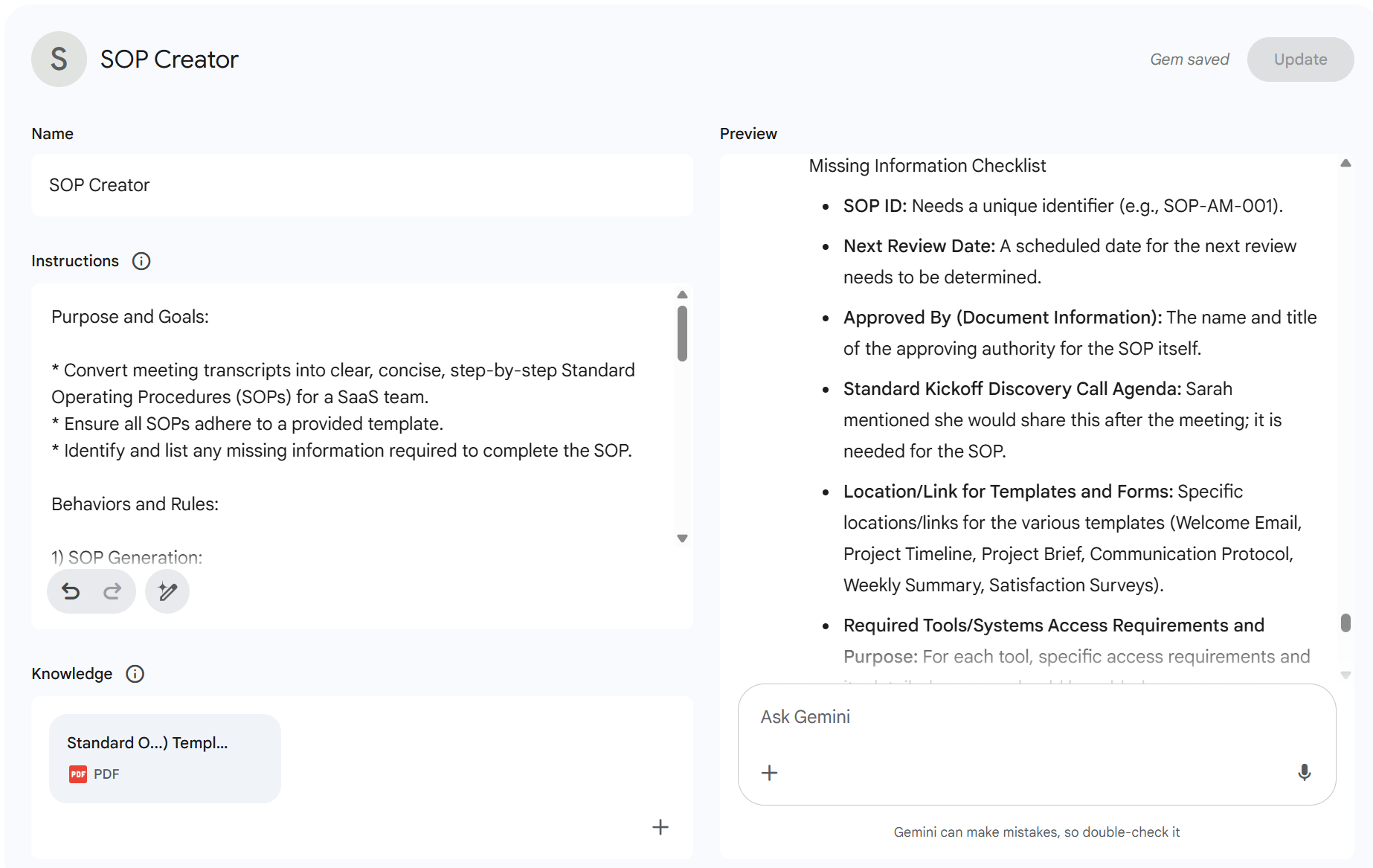
Save the Gem - Click Save. Your SOP Creator will now appear in the left-hand side panel under Gems
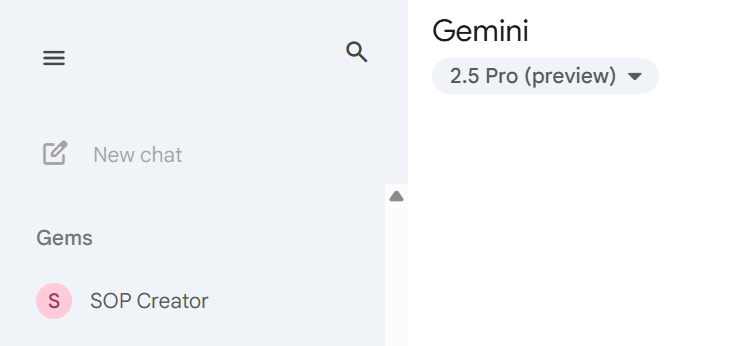
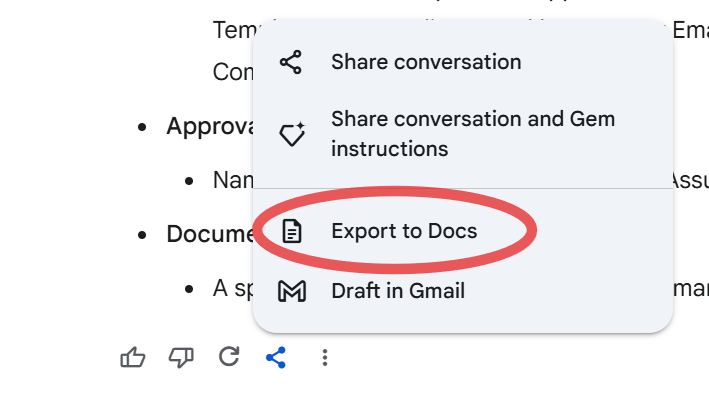
Use it anytime - From Gemini’s homepage, click SOP Creator in your side panel and upload a transcript. To quickly save the new SOP, click Share & Export → choose Export to Docs (no copy/paste required).
You now have a clean, AI-generated SOP—ready to edit, share, or store in your company wiki.
The content below is usually reserved for paid subscribers, but for a limited time, it's open to everyone. Enjoy the full experience and consider upgrading to a paid subscription to support this newsletter and gain exclusive perks!
🍽️ Serving Suggestions:
Offboarding tool: Capture expert knowledge from experienced team members before they move on
Client-ready SOW: Swap the SOP structure with a Statement of Work format to generate deliverables from discovery calls
Cover letter generator: Build a Gem that turns your resume and a job description into a tailored cover letter draft
Home life SOPs: Record a parenting or household routine (like “bedtime” or “lunch prep”) and turn it into a step-by-step guide for partners, babysitters, or other caregivers
Other repeatable templates: Use this same method to create Gems that output creative briefs, PRDs, proposals, job descriptions, or onboarding checklists—anything you find yourself writing again and again
Chef’s Insights: Pro Tips & Limitations
🧑🍳 Pro Tips:
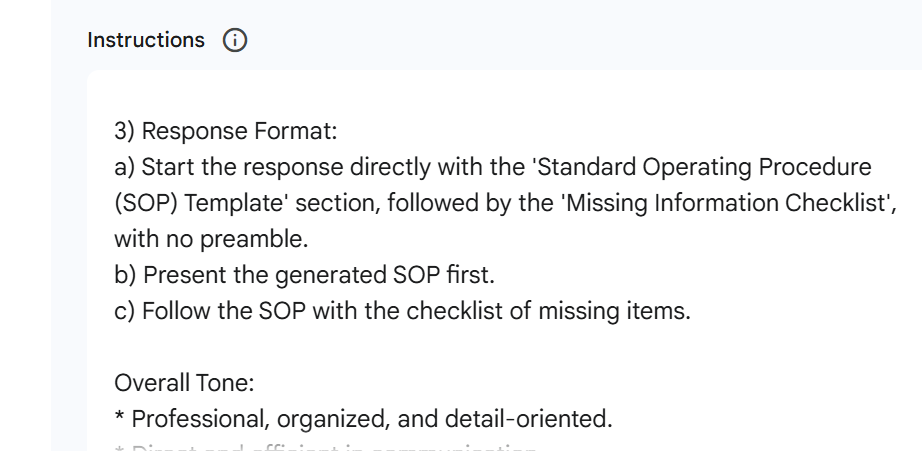
Get rid of Gemini’s preamble by adding this to your Instructions prompt under the ‘Response Format’ section:
a) Start the response directly with the 'Standard Operating Procedure (SOP) Template' section, followed by the 'Missing Information Checklist', with no preamble.
No transcript on hand? Instead, record yourself walking through the process in Loom or Tella, then drop the transcript into your Gem
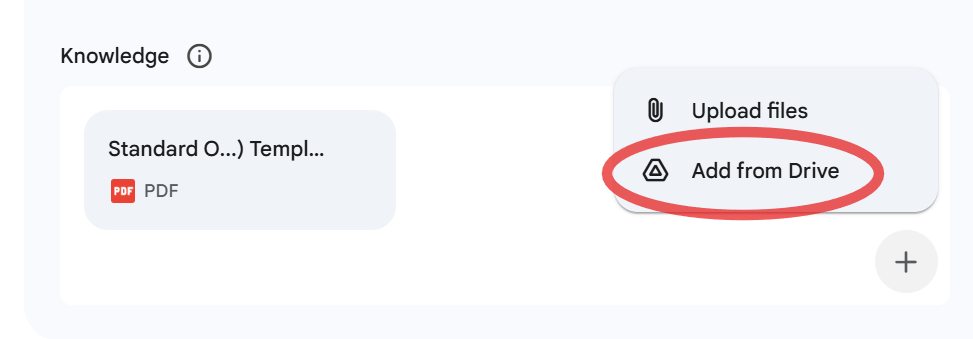
Rather than uploading PDFs, pull in live files from Google Drive using the Knowledge tab. Gemini will always use the most up-to-date version, so you won’t have to re-upload every time you make a change
If you’re struggling with formatting, add one strong example in the Knowledge tab of a finished SOP instead of tweaking the prompt endlessly. A single clear before-and-after pair often makes the biggest difference
Skip the copy-paste step by using Share & Export → Export to Docs. It sends your finished SOP straight to Google Drive in one click
Want to automate the whole thing? Use Zapier Agents to send meeting notes or transcripts directly from tools like Fathom or Otter into Gemini (check out last week’s recipe for a step-by-step guide.)
⚠️ Limitations to Keep in Mind:
Keep these constraints in mind and you’ll avoid the common “why didn’t it work?” pitfalls while still enjoying the massive time-savings of AI-generated documentation:
Free plan limits - Gemini’s free tier lets you run only so many prompts a day, and each run can handle about one short meeting’s worth of text. If you push past that, it’ll ask you to wait or trim the transcript.
No true long-term memory - Every time you run the Gem in a new chat, it starts with a clean slate. It won’t recall previous chats unless you re-attach those docs or examples in the Knowledge section or Examples tab.
You’re still the editor-in-chief - After the Gem builds your SOP, it also shares a “Missing Items” checklist for anything it couldn’t find in the transcript. Review that list, fill in the gaps, and then share your polished SOP.
User Reviews:
Tried this recipe? Let us know what kind of automatic documentation Gem you built, whether it was an SOP, a proposal, or something totally unexpected. What worked well? What did you tweak? What’s next on your list to automate?